Step 1
Sign up as a Host or Participant
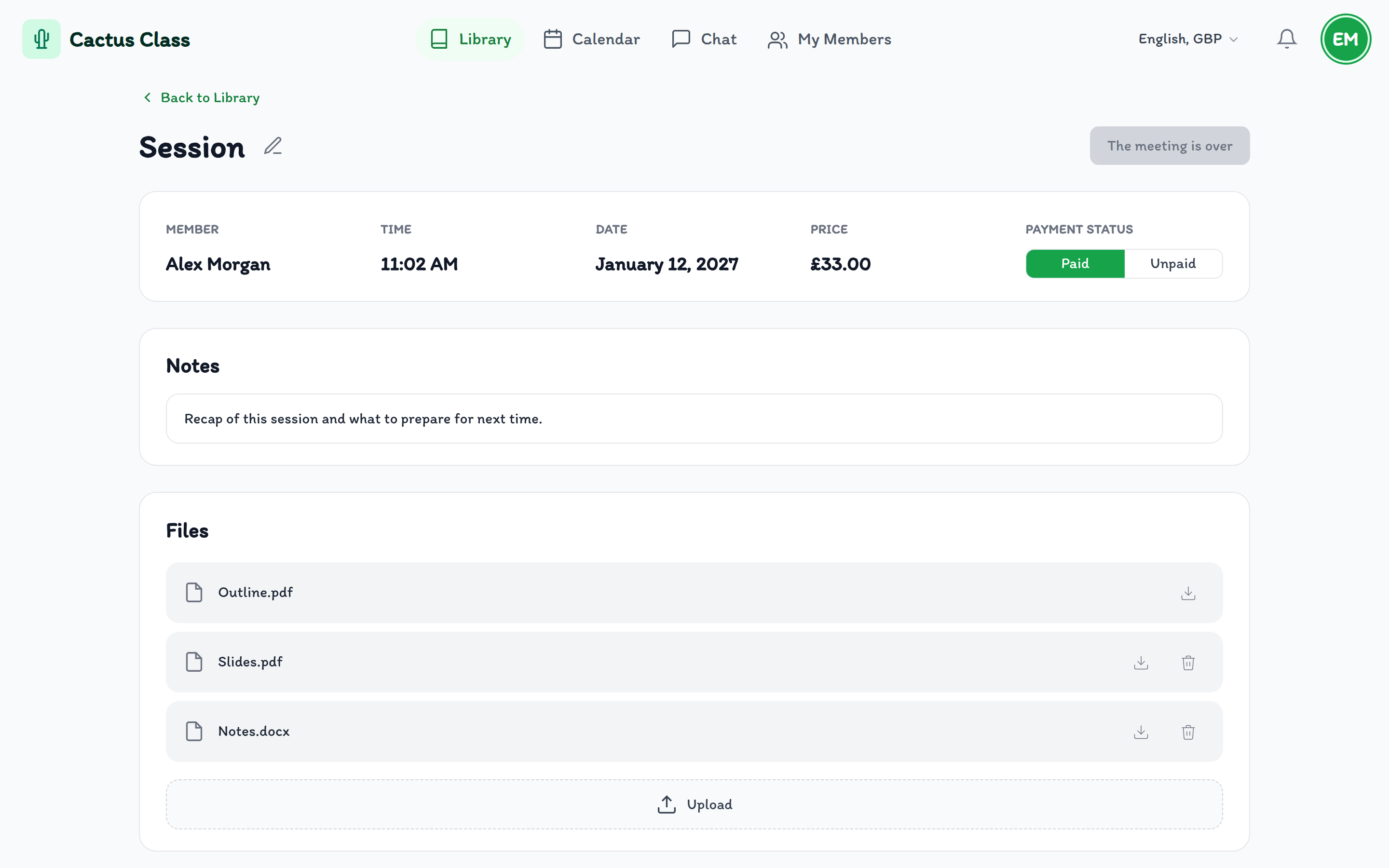
Enter your name and email. We send a six-digit code — there is no password. Choose Host if you arrange meetings, or Participant if you join them.
A workspace for lessons, hiring, and creative work. Sign up, meet live, keep every file and note in one library.
Live room
Video, board, files
Library
Notes stay together
Calendar
Arrange in a click
Step 1
Enter your name and email. We send a six-digit code — there is no password. Choose Host if you arrange meetings, or Participant if you join them.
Step 2
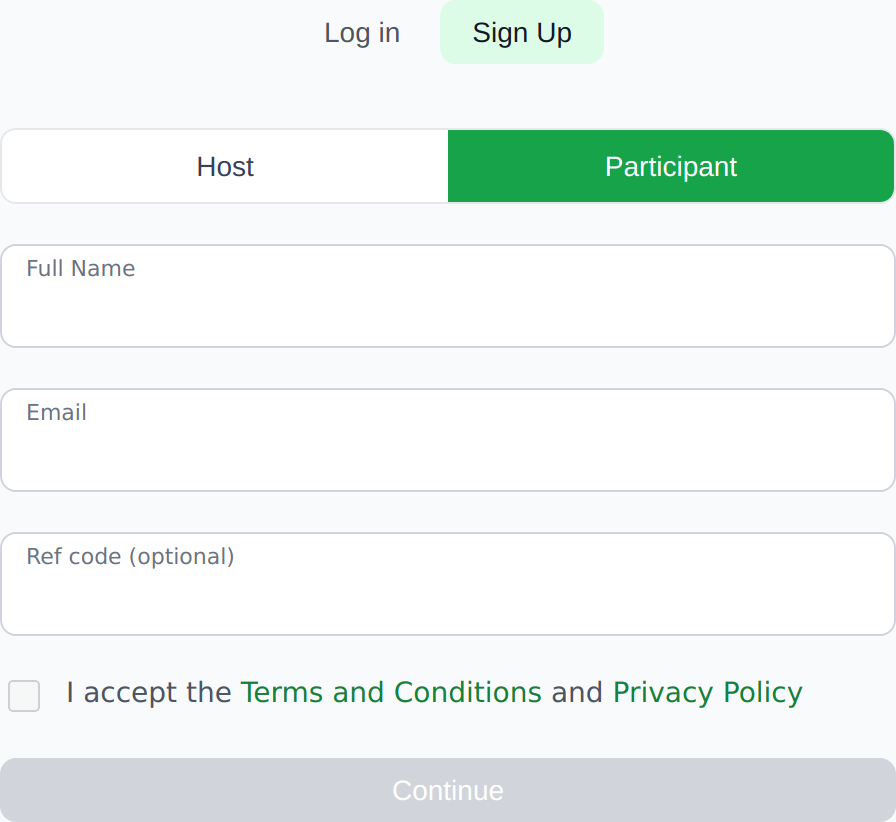
Open My Members and Find a member. Generate a ref code (valid for 24 hours) or copy the invitation. The other person pastes that code when they sign up, or enters it in the same window and taps Join. They then show up on each other’s My Members list.
Step 3
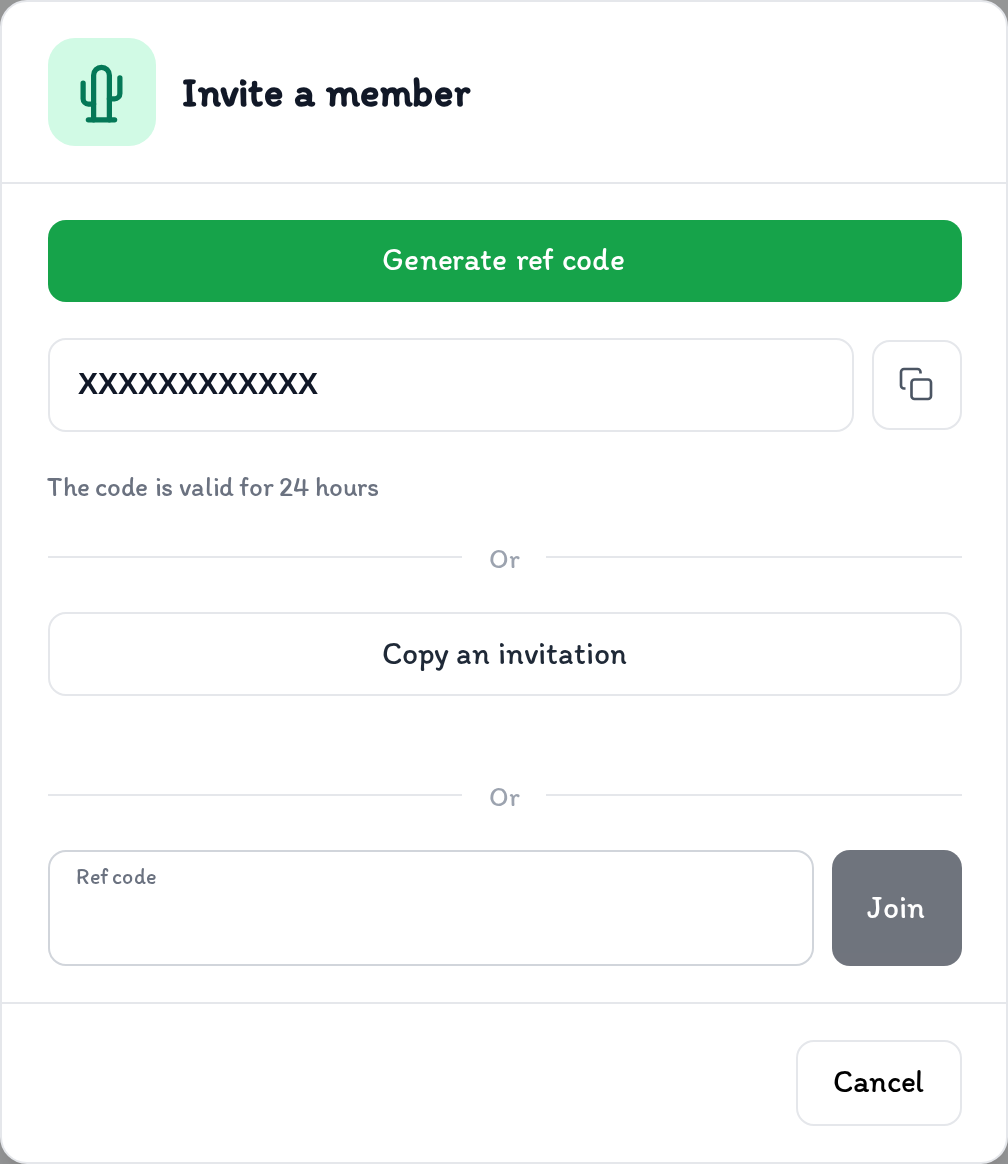
Open Chat with someone you invited. Agree what the meeting is for, and the price and how you will pay if there is a fee. Cactus Class does not process payments — that stays between you.
Step 4
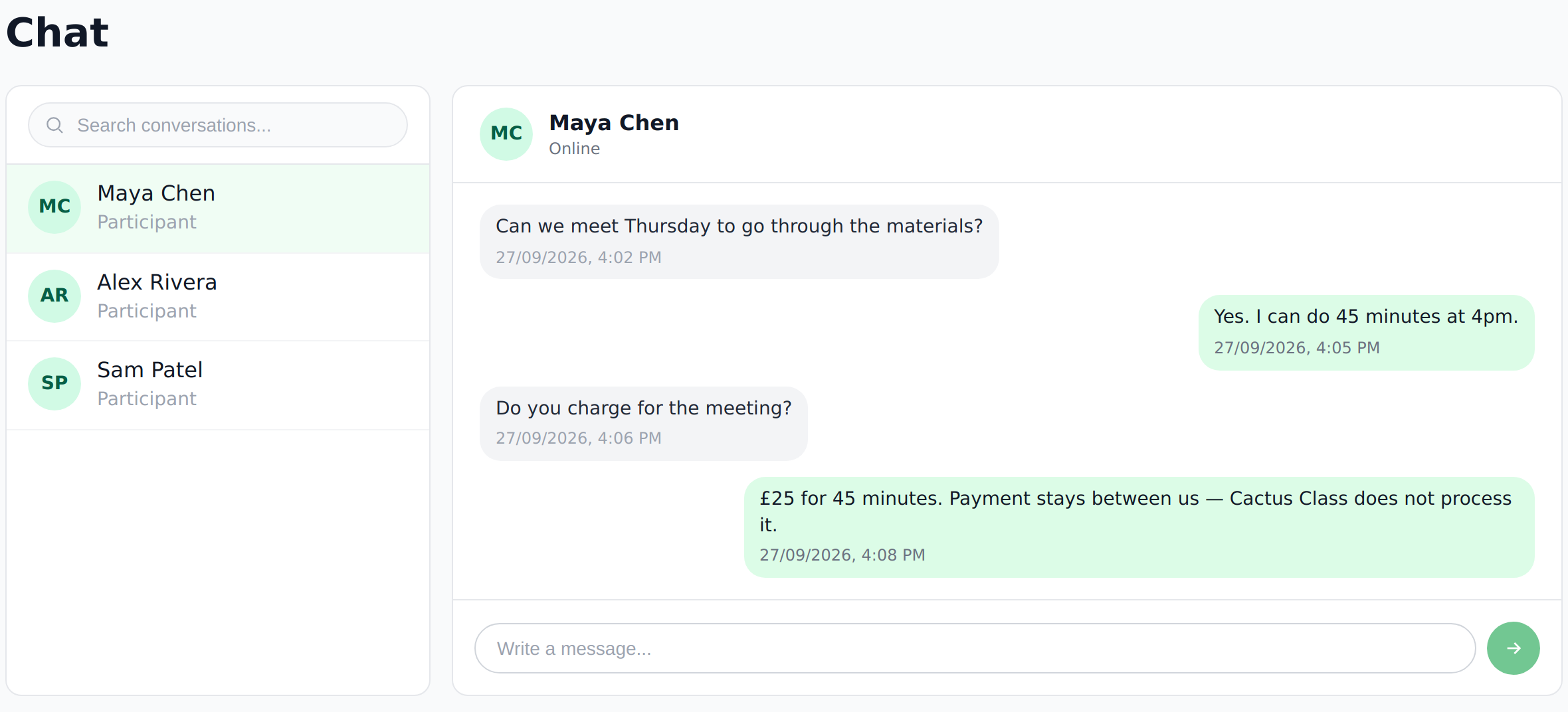
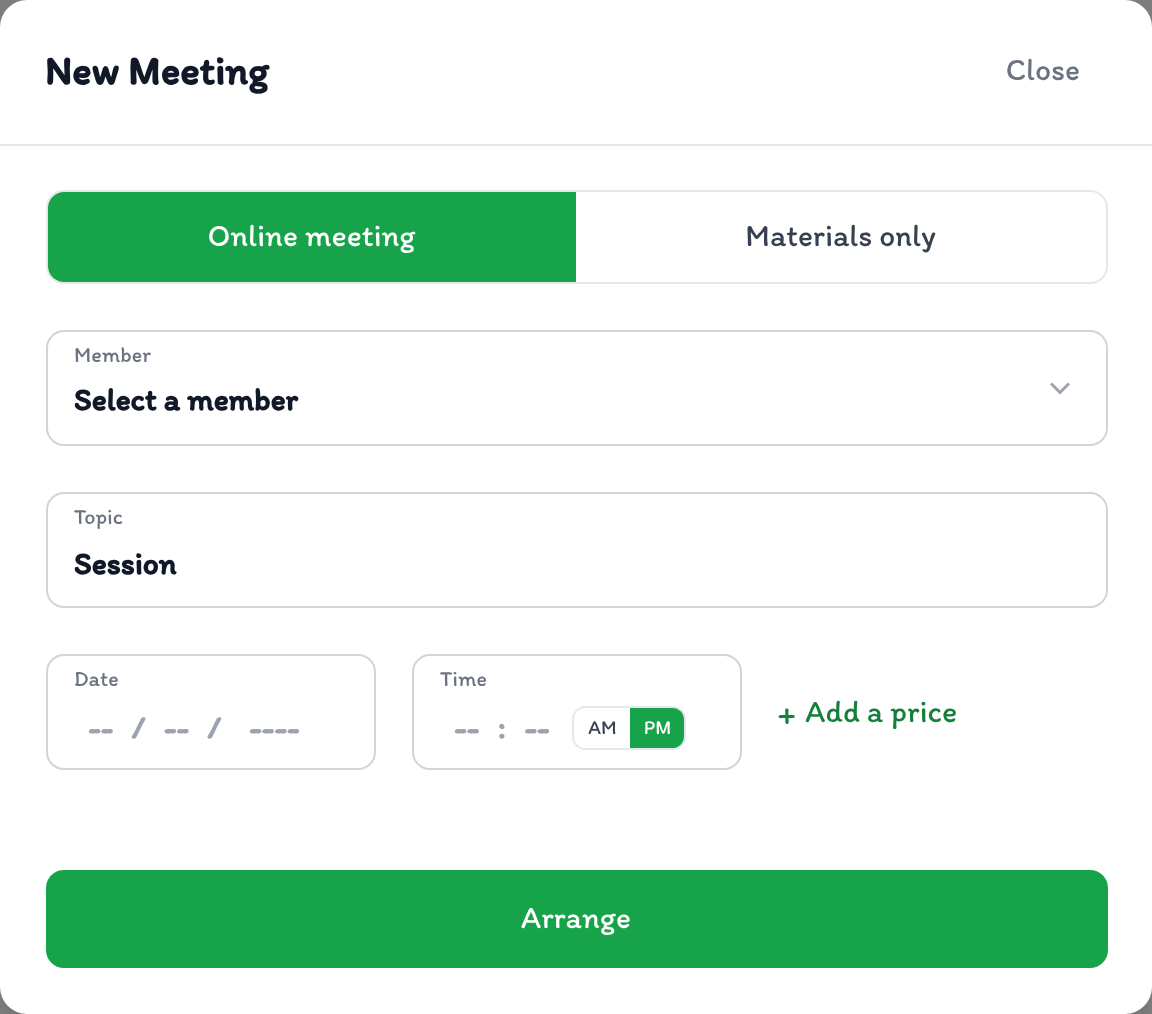
Hosts pick a member, topic and time on the calendar. Choose an online meeting or materials only. Add a price if you like — the payment status will be added to the meeting folder.
Step 5
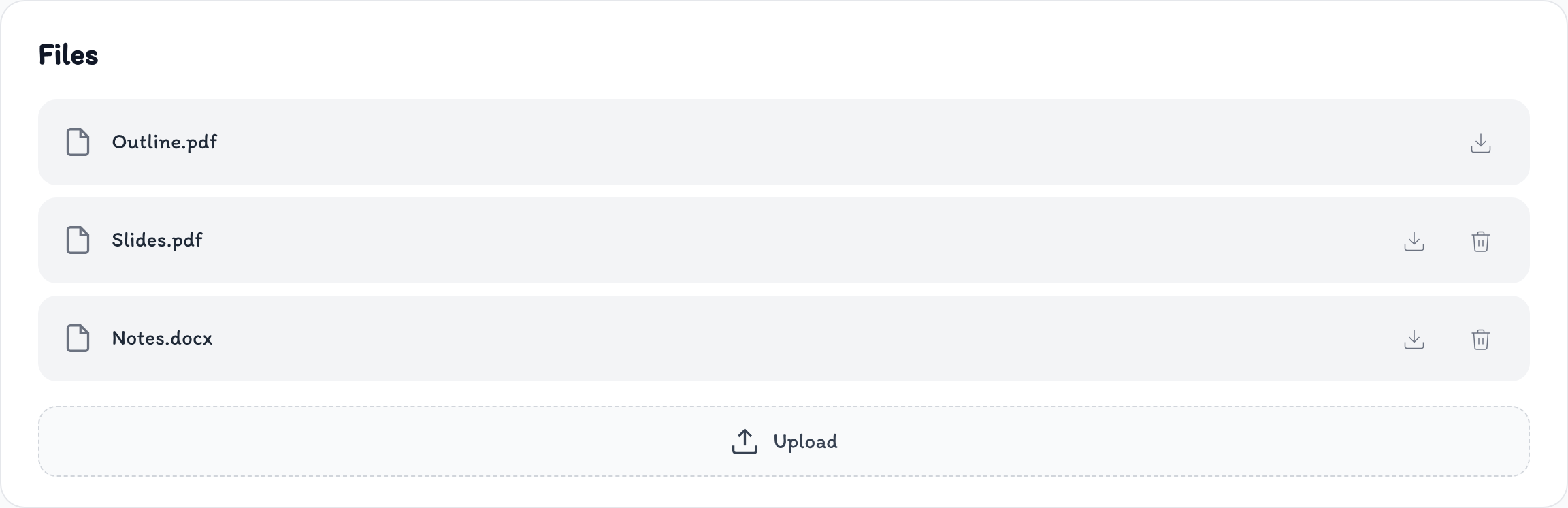
Attach PDFs, notes and other files to the meeting in the Library. Both Host and Participant can add their own materials so everything is ready when you join.
Step 6
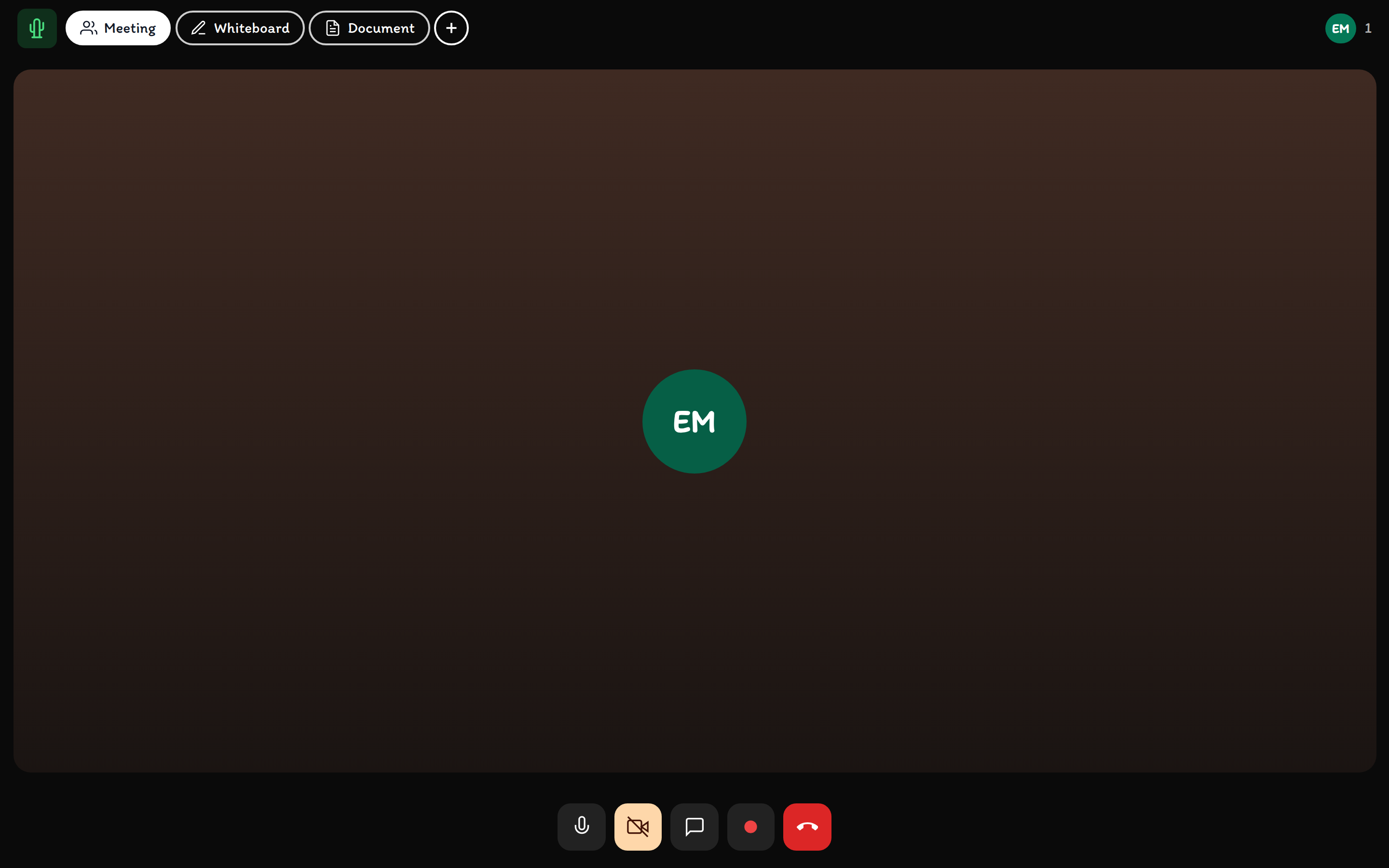
Start or join when the time comes. Draw on a shared whiteboard, open documents together, and chat without leaving the room.
Step 7
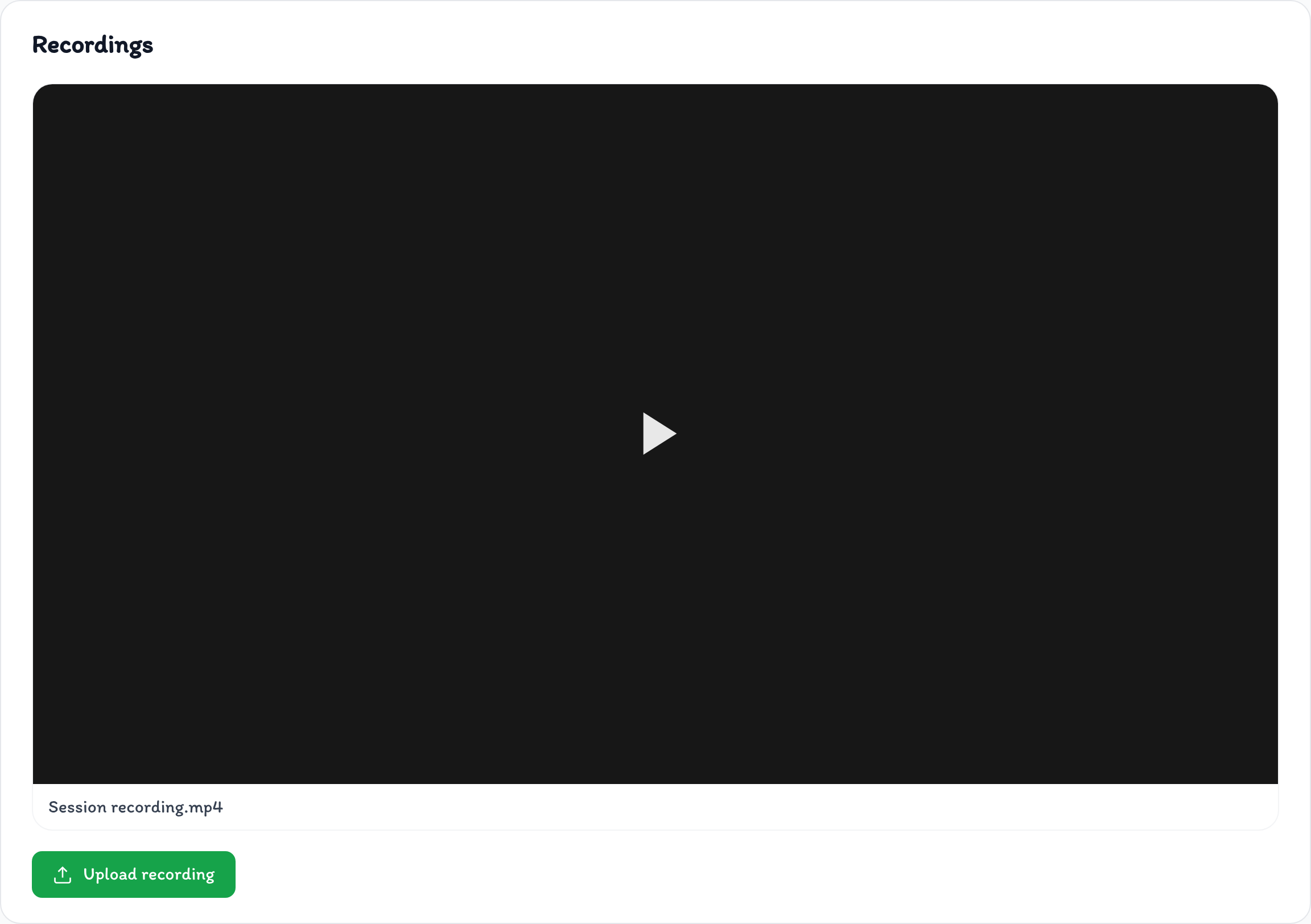
Hosts can record the meeting. When it ends, the video sits with that meeting in the Library alongside chats and files, so nothing is scattered.
Step 8
After the meeting finishes you can still Enter. Revisit the whiteboard, files and recordings, and write notes on the meeting page so the next session starts where you left off.